
PHOTO TO LINE ART · BUILT BY AN ENGRAVER
Line Art for Laser Engraving That Still Looks Like the Photo
I run a laser engraving business. Most line art tools looked great on screen but changed important facial features once engraved. So I built one that stays faithful to the original photo.
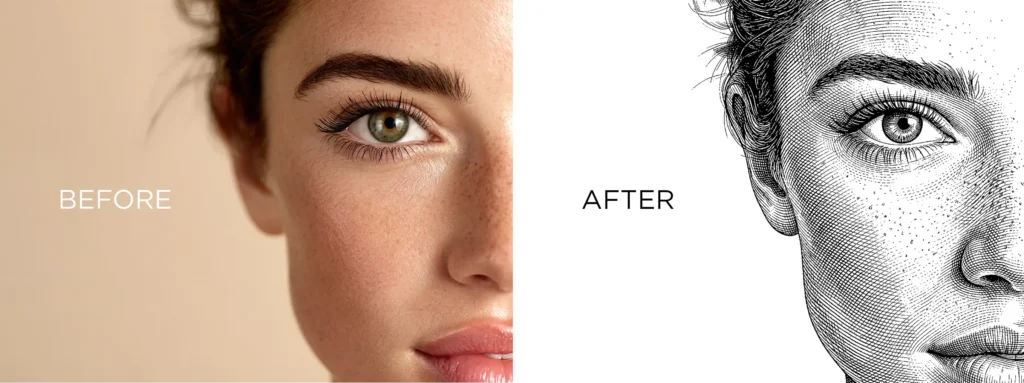
No software to install. Upload → convert → export, all in your browser.
I got tired of converters that redraw faces
I’ve been engraving for customers for years – thousands of jobs across wood, acrylic, slate, and leather. Most of my day isn’t engraving. It’s prepping files.
The breaking point was a memorial portrait. A customer brought in a photo of someone they’d lost. I ran it through a popular AI converter, the preview looked good, and the engraved result came back looking like a stranger. I had to tell that customer it wasn’t ready.
That's a conversation you don't forget. After that, I stopped trusting any tool that redraws faces.
I couldn’t find one that didn’t – so I built this, tested it on my own customer work, and kept refining it until the output actually matched the input. This isn’t software somebody made to chase a market. It’s the tool I needed in my own shop, built around one rule: keep the likeness.
— Ricky, Ricky Laser Art
See it for yourself
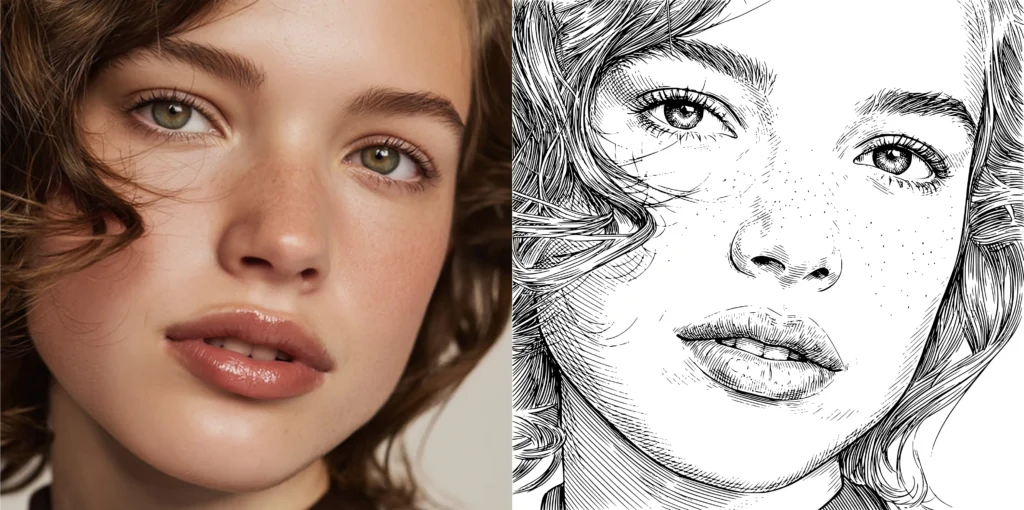
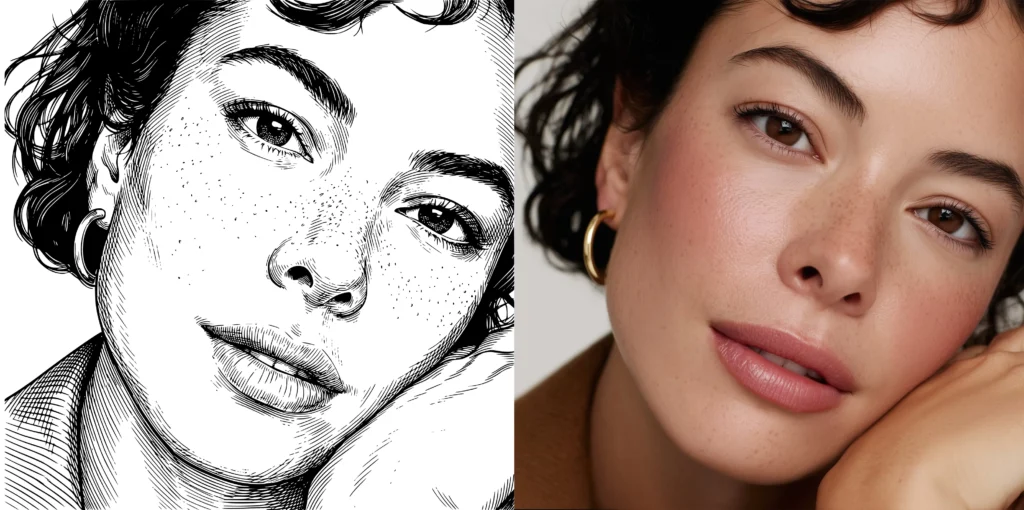
Same face going in. Same face coming out.
I’m not going to tell you it stays faithful — I’ll show you. Real photos, converted to engraving-ready line art with nothing redrawn.
The difference
Generic AI tools vs. Engraving Art Studio
Most AI line art generators are built to create an image. This is built to preserve one. That changes everything about how the engraving comes out.
What matters when you engrave
- Keeps the actual face
- Expression & likeness
- Small details
- Detail control
- Cleaning up the file
- Engraving-ready export
Generic AI line art tools
- Redraws it into a new image
- Often shifts or changes
- Dropped or invented
- One preset, take it or leave it
- Done in a separate program
- Usually needs re-tracing
Engraving Art Studio
- Traces your real photo
- Stays faithful to the original
- Preserved, your call to keep or simplify
- Threshold slider, tuned per material
- Built-in canvas editor
- SVG, DXF, PNG ready to run
Everything from photo to engraving-ready file, in one place
How it works
Four steps, one screen
Who it’s for
What is line art - and why it matters for engraving
Line art is an image made of clean outlines instead of shading and color. No grey gradients, no soft fills, just the lines that define the shapes.
For laser engraving this matters because most machines work best with clear paths, not photo-style tones. A shaded photo often comes out muddy, and it won’t work at all for cutting or single-line scoring. Good line art for laser engraving gives the machine exactly what it needs – defined edges it can trace, score, or cut.
The hard part is deciding which lines to keep. Keep too many and a face turns into noise. Drop too many and you lose the likeness. Getting that balance right, automatically, for a real human face is what most photo to line art converters get wrong – and the one thing this tool is built to get right.
Best photos for line art conversion
- Good lighting. Even, soft light beats harsh shadows.
- Clear subject. The more it stands out, the cleaner the result.
- Sharp focus. A crisp photo gives crisp line art.
- Decent resolution. More real detail to work with.
You don’t need a professional photo. A good phone photo in soft daylight usually converts beautifully.
Before you try it
Questions I get asked
That’s the whole point. It’s built to preserve facial features and important details instead of redrawing them, so the line art stays faithful to the photo you upload.
Your photos are used only to create your line art and are never sold. We don’t share your images unless you explicitly choose to submit them as a testimonial or showcase example.
Most AI tools generate a new image based on your photo, which means they reinterpret faces and details. This tool traces what’s in the photo rather than inventing a new version, so the likeness holds.
Most phone photos in decent light convert cleanly. Well-lit, sharp, higher-resolution images with a clear subject give the best line art. The fastest way to know is to run one of your own through it.
Yes. The Threshold control lets you add or reduce detail, which is how you optimize the line art for different materials like wood, acrylic, slate, or leather.
No. The canvas editor is built in – remove unwanted objects, clean up areas, and draw small corrections with a pencil, all inside the same window, then export.
SVG, DXF, and PNG. The DXF and SVG give clean paths for LightBurn, Glowforge, and xTool workflows; PNG covers raster engraving. The exported file is ready to engrave with no extra tracing step.
Between the Threshold slider and the built-in editor, you can adjust the detail and fix lines yourself before exporting. If something still isn’t working for you, get in touch — see the refund policy for paid plans.
Try it on a photo you already know well
Use a portrait where you know the face. That’s the only honest test – and it’s the one I built this line art converter to pass.
SVG · DXF · PNG · Works with LightBurn, Glowforge & xTool